The Layers menu
On this page
The Layers button in the bottom-left corner of the map opens a menu with everything the map can show. Pick one map type for the ground, then turn on as many layers on top of it as you like.
#Open the menu
Select Layers. Its small picture shows the map type you would switch to. Select a switch to turn it on (it turns blue) or off. Close the menu with the ×, Esc or a click on the map.
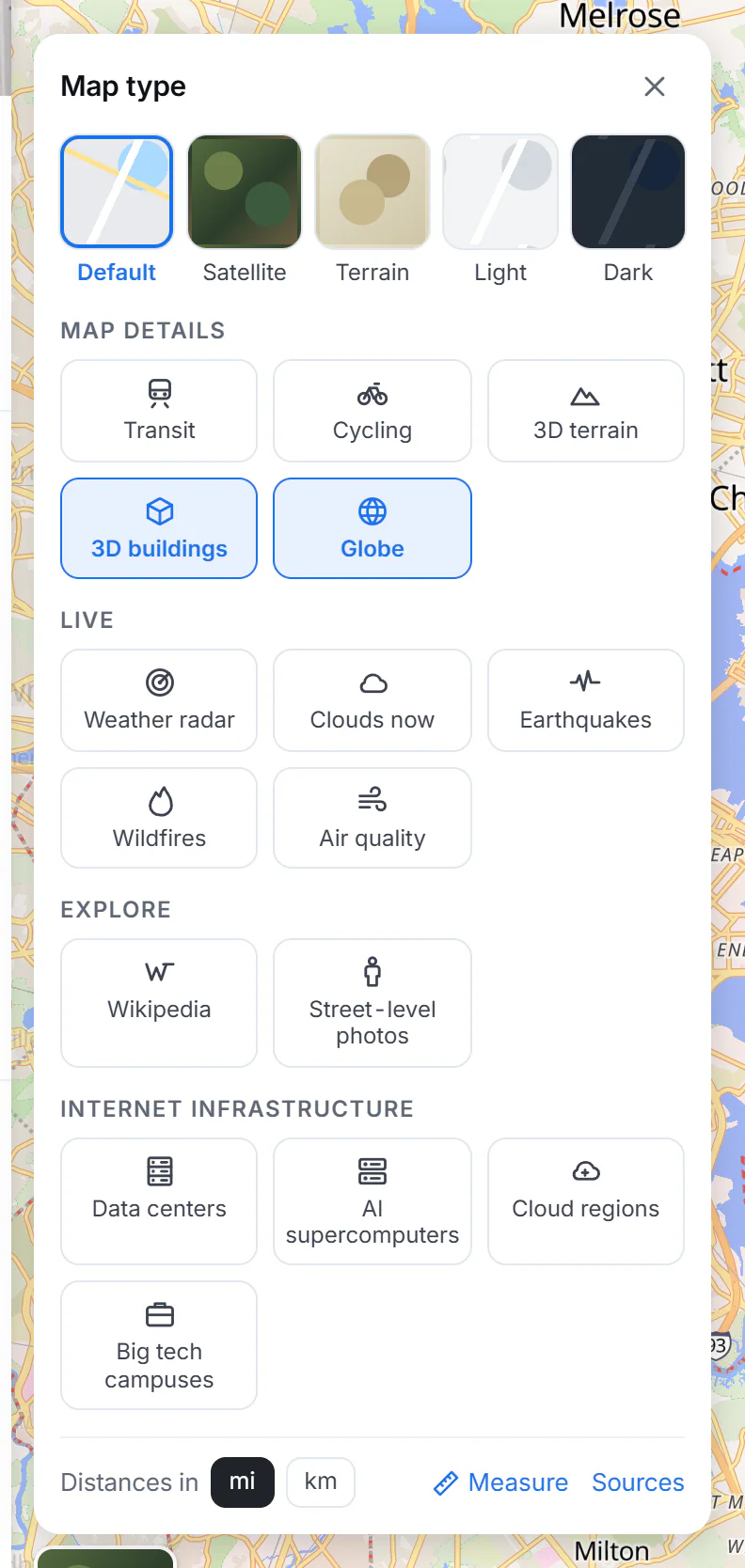
The Layers menu. The map type is one choice; everything below can be combined.
- 1Map type: how the ground looks
- 2Map details: transit, cycling, 3D terrain, 3D buildings, globe
- 3Live layers
- 4Explore: Wikipedia and street-level photos
- 5Internet infrastructure: data centers and more
- 6Miles or kilometers, the Measure tool, and the list of sources
#Map type
| Type | What it is for |
|---|---|
| Default | The everyday street map. It follows the site's colors: dark when you use the Dark theme. |
| Satellite | Aerial and satellite pictures with streets and names on top. See Satellite. |
| Terrain | Shaded hills and mountains. |
| Light | A pale, quiet map that lets layers such as earthquakes or data centers stand out. |
| Dark | A dark map, easier on the eyes at night. |
#Map details
- Transit: subway, tram, light rail and rail lines, and stations.
- Cycling: bike paths and lanes, and streets open to bikes.
- 3D terrain: lifts the hills and mountains into 3D (tilt the map to see it).
- 3D buildings: buildings drawn at their height when you zoom in on a city (on by default; not shown over satellite pictures).
- Globe: shows the whole Earth as a globe when you zoom out (on by default). Turn it off for a flat world map.
#Live
Weather radar, Clouds now, Earthquakes, Wildfires and Air quality. See Live maps.
#Explore
- Wikipedia: markers for Wikipedia articles about places around the middle of the map, once you zoom in.
- Street-level photos: where photos of streets and paths exist; select one to look around.
#Internet infrastructure
Data centers, AI supercomputers, Cloud regions and Big tech campuses. See The data center map.
#Miles or kilometers, Measure and Sources
The bottom row of the menu has:
- Distances in mi / km: distances and areas on Maps switch at once, including routes, search results, the elevation chart of a route and the scale bar. Maps starts in miles in the United States, the United Kingdom and a few other places, and in kilometers elsewhere.
- Measure: measures a distance or an area on the map. See Map controls and gestures.
- Sources: the list of every source and its licence.
#Common questions
Why did the Dark map turn on by itself?
The Default map follows the site's color theme. If you chose the Dark theme for the site, the street map is dark too. See Themes.
Why did a layer I turned on disappear when I chose another map type in the ribbon?
Each type in the ribbon turns on what it needs and turns it off again when you move to the next type. Layers you turn on yourself in this menu stay on until you turn them off.
Why can't I see 3D buildings?
Zoom in on a city: buildings rise only close up. They are also hidden while the Satellite map type is on, and only buildings whose height is recorded in OpenStreetMap stand up.